A distraction-free workspace does not need to be empty, expensive, or perfectly styled. It needs to make the work you actually do easier while reducing unnecessary interruptions. Clearing visual clutter can help, but a useful workspace also depends on ergonomics, lighting, noise, digital habits, and having the right tools within reach.
The phrase “boosts focus instantly” should not be treated as a guarantee. Changing your desk cannot force concentration on demand. What a better setup can do is remove friction: fewer irrelevant items to handle, fewer alerts competing for attention, and a clearer place to begin. This guide shows how to create that kind of workspace with practical changes instead of an expensive office makeover.
Define What the Workspace Is For
Before moving furniture or buying organizers, decide which activities need to happen in the space. A desk used for remote work has different requirements from one used for studying, drawing, bookkeeping, gaming, or occasional household administration.
Ask four questions
- What are the main tasks I do here?
- Which tools do those tasks require every day?
- Which items are used only occasionally?
- What repeatedly interrupts or slows me down?
Your answers become the filter for every setup decision. If an object does not support the main tasks, it probably does not deserve prime desk space.
Clear the Work Surface Before Organizing It
Do not start by buying containers. Remove everything from the active work area except the equipment you genuinely need. Then add items back according to frequency of use.
Use three zones
- Primary zone: keyboard, mouse, notebook, pen, or other tools used constantly.
- Secondary zone: items used several times a day but not continuously.
- Storage zone: reference materials, chargers, supplies, and occasional tools.

This approach also makes it easier to notice duplicates. If you already have several pens, chargers, notebooks, or cables in the workspace, adding another organizer may simply make unnecessary items look more orderly.
For a broader home reset, our step-by-step decluttering guide can help you decide what to keep, move, or remove.
Set Up the Desk for Comfortable Computer Work
A minimal desk is not useful if it forces you into an awkward position. The U.S. Occupational Safety and Health Administration’s Computer Workstations eTool provides practical guidance for arranging desks, chairs, monitors, keyboards, and pointing devices.
OSHA notes that there is no single workstation arrangement that fits everyone. The useful goal is a setup that supports neutral, comfortable positioning and gives you adequate room to work.
Basic workstation checks
- Keep the monitor generally in front of you rather than forcing repeated twisting.
- Place frequently used devices where they are easy to reach.
- Keep enough clear space under the desk for your legs and feet.
- Adjust the chair and work surface so you are not constantly reaching up or down.
- Reduce sharp or uncomfortable contact points at the desk edge.
- Change position periodically instead of trying to hold one “perfect” posture all day.
If pain, numbness, or another persistent physical symptom is affecting work, workstation changes are not a substitute for appropriate medical evaluation.
Control Digital Distractions at the Source
A clean desk can still be distracting if the computer and phone are constantly demanding attention. Instead of relying only on willpower, change the environment.
Practical digital changes
- Disable nonessential notifications during focused work.
- Close tabs that are unrelated to the current task.
- Keep social media and entertainment apps off the main work screen.
- Use separate browser profiles for work and personal use if that helps.
- Put the phone out of immediate reach when it is not needed.
- Check email and messaging at intentional times when your work allows it.
Our digital minimalism guide provides a wider framework for reducing unnecessary screen use without treating technology itself as the problem.
Reduce Visual Noise Without Removing Useful Personality
Minimal does not have to mean sterile. A photograph, plant, small artwork, or meaningful object can make a workspace pleasant without interfering with work.
The key is intentional placement. If the desk is covered with unrelated papers, unopened mail, packages, decorations, and household items, your eyes and hands have more things to process whenever you begin a task.
Try a one-week desk test
Move nonessential items into a temporary box for one week. If you repeatedly need something, return it to an appropriate place. If you never use it, store it elsewhere or decide whether you still need it.
Improve Lighting and Manage Glare
Lighting can affect comfort and screen visibility. OSHA’s workstation guidance recommends arranging the work environment to reduce glare and make displays easier to see.

Low-cost lighting adjustments
- Reposition the monitor relative to windows or bright lights.
- Use blinds or curtains when direct light creates glare.
- Clean the screen regularly.
- Use task lighting where needed rather than making the entire room excessively bright.
- Adjust screen brightness to suit the surrounding environment.
You may be able to solve a lighting problem by changing position rather than buying new equipment.
Create a Home for Cables and Chargers
Cable clutter can make a work surface harder to clean and can create confusion when several similar chargers are mixed together. Keep only the cables required for the current setup on the desk.
No-cost cable organization ideas
- Route cables behind the desk where practical.
- Reuse twist ties or hook-and-loop straps you already own.
- Label similar chargers.
- Store spare cables together away from the primary work area.
- Remove damaged cables and dispose of electronics appropriately.
Do not create trip hazards or pinch power cords under furniture. Follow manufacturer instructions for power strips, extension cords, and electrical equipment.
Separate Current Work From Storage
One of the easiest ways for paper to take over a desk is to use the work surface as a permanent filing cabinet. Keep only active documents within the primary work area.
A simple paper system
- Action: papers that require a task.
- File: documents that should be retained.
- Recycle or shred: papers no longer needed, handled according to their sensitivity.
If a document contains personal, financial, medical, or other sensitive information, dispose of it securely rather than placing it openly in recycling.
Design the Workspace Around Your Most Important Task
If your primary work is writing, the keyboard and screen deserve the best placement. If you draw, the work surface and lighting matter more. If you take many calls, keep the microphone, headset, notes, and calendar convenient.
Do not let equipment for occasional tasks crowd out the tools you use every day. A workspace should reflect how you actually spend your working time.
Create a Start Ritual
A small routine can make it easier to transition into work. The ritual does not need to be motivational or complicated.
Five-minute start routine
- Clear anything left on the desk that does not belong.
- Open the tools for the first task.
- Write down the next concrete action.
- Silence or move unnecessary notifications.
- Begin before checking low-priority content.
If you want a broader structure around the workday, see our simple daily routine guide.
Use a Shutdown Ritual Too
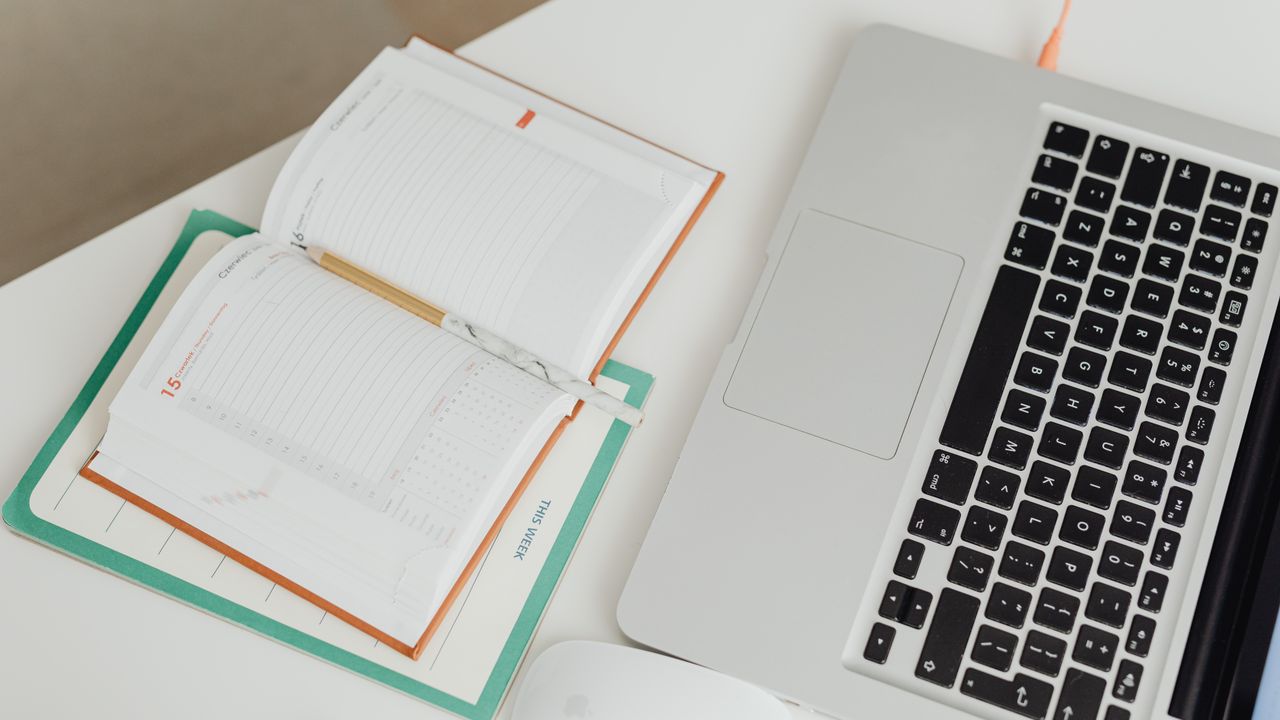
A workspace stays easier to use when every day does not begin with yesterday’s clutter. Spend a few minutes at the end of work returning the desk to a ready state.
End-of-day reset
- Save and close work.
- Write tomorrow’s first task.
- Put loose papers in their correct category.
- Return cups, dishes, and unrelated household items.
- Plug in devices that need charging.
- Clear the primary work surface.
The objective is not perfection. It is to make tomorrow’s start easier.
Manage Noise Based on the Type of Work
Some tasks require quiet; others may feel comfortable with background sound. Pay attention to what helps you perform the specific task rather than copying a universal rule.
Options when noise is a problem
- Close a door when possible.
- Coordinate quiet periods with household members.
- Move calls to a suitable space.
- Use appropriate headphones if they are comfortable and safe for your environment.
- Schedule concentration-heavy work during quieter periods when practical.
If you need to remain aware of children, alarms, traffic, coworkers, or other safety signals, do not block environmental sound in a way that creates risk.
Keep Frequently Used Items Easy to Reach
Minimalism should reduce friction, not hide every object. If you use a notebook ten times a day, putting it in a distant drawer may make the workspace look cleaner while making work less efficient.
Keep high-use tools convenient. Store low-use tools farther away. Remove items that do not support the work at all.
Do Not Buy Productivity Gear Without a Specific Problem
Desk accessories, monitor arms, standing desks, mechanical keyboards, organizers, lamps, and headphones can all be useful, but none is automatically necessary.
Before buying, ask:
- What exact problem am I solving?
- Can I fix it by rearranging what I already own?
- Will I use this item often enough to justify the space and cost?
- Does it fit my existing equipment?
- Can I return it if it does not work for me?
A low-cost setup that supports your work is better than an expensive setup built around products you rarely use.
A 30-Minute Workspace Reset
- Minutes 1–5: remove trash, dishes, and unrelated household items.
- Minutes 6–10: sort loose papers into action, file, and dispose categories.
- Minutes 11–15: move rarely used tools away from the primary zone.
- Minutes 16–20: route obvious cable clutter and remove spare chargers.
- Minutes 21–25: adjust monitor, chair, keyboard, mouse, and lighting for comfort.
- Minutes 26–30: close unnecessary tabs, review notifications, and prepare the next work task.
Common Workspace Mistakes
Making the desk empty but impractical
If you constantly leave the desk to retrieve basic tools, the setup is too minimal for your work.
Ignoring digital clutter
Physical organization will not solve constant alerts, dozens of unrelated tabs, or an inbox interrupting every task.
Buying organizers before decluttering
Storage products can hide excess rather than solve it. Reduce first, organize second.
Treating one posture as mandatory
Comfort varies. Adjust the setup to your body and change position periodically rather than forcing one rigid posture.
Expecting the workspace to create motivation
A better environment can reduce friction, but it does not replace clear priorities, adequate rest, realistic workload, or task planning.
Frequently Asked Questions
Does a clean desk automatically improve focus?
No. A cleaner desk may reduce visual and physical distractions for some people, but focus also depends on the task, digital interruptions, workload, sleep, stress, and individual preferences.
How many items should stay on a minimalist desk?
There is no ideal number. Keep the tools you use frequently and anything that meaningfully supports the space. Remove items that create friction or have no purpose there.
Do I need to buy an ergonomic chair?
Not automatically. First adjust the chair and desk you already have as effectively as possible. If the setup cannot support your needs, then compare options based on fit and adjustability rather than appearance alone.
What should I organize first?
Start with the primary work surface and your digital notifications. Those areas usually affect every work session.
Final Checklist
- Define the main purpose of the workspace.
- Keep daily-use tools in the primary zone.
- Remove unrelated clutter before buying organizers.
- Adjust the desk, monitor, chair, keyboard, and mouse for comfort.
- Reduce unnecessary notifications.
- Manage glare and lighting.
- Separate active papers from long-term storage.
- Create simple start and shutdown routines.
- Review noise and household interruptions.
- Buy new equipment only when it solves a clear problem.
Conclusion
A distraction-free workspace is not defined by how little it contains. It is defined by how clearly the environment supports the work you need to do. Keep useful tools accessible, remove unrelated clutter, manage digital interruptions, and make your workstation comfortable enough to use consistently.
Start with the setup you already own. A few thoughtful changes can make the space easier to begin working in, easier to maintain, and less likely to compete for your attention—without relying on unrealistic promises of instant focus.