Digital minimalism is not about deleting every social app or turning your smartphone into a basic phone. It is about deciding which digital tools deserve your attention and setting boundaries so notifications, feeds, messages, and entertainment do not control the structure of your day.
If you want to reduce screen time in 2026, start with the interruptions that happen automatically. You do not need to rely entirely on willpower. Change notifications, app placement, default settings, and daily routines so the easier choice is also the more focused one.
What Digital Minimalism Means
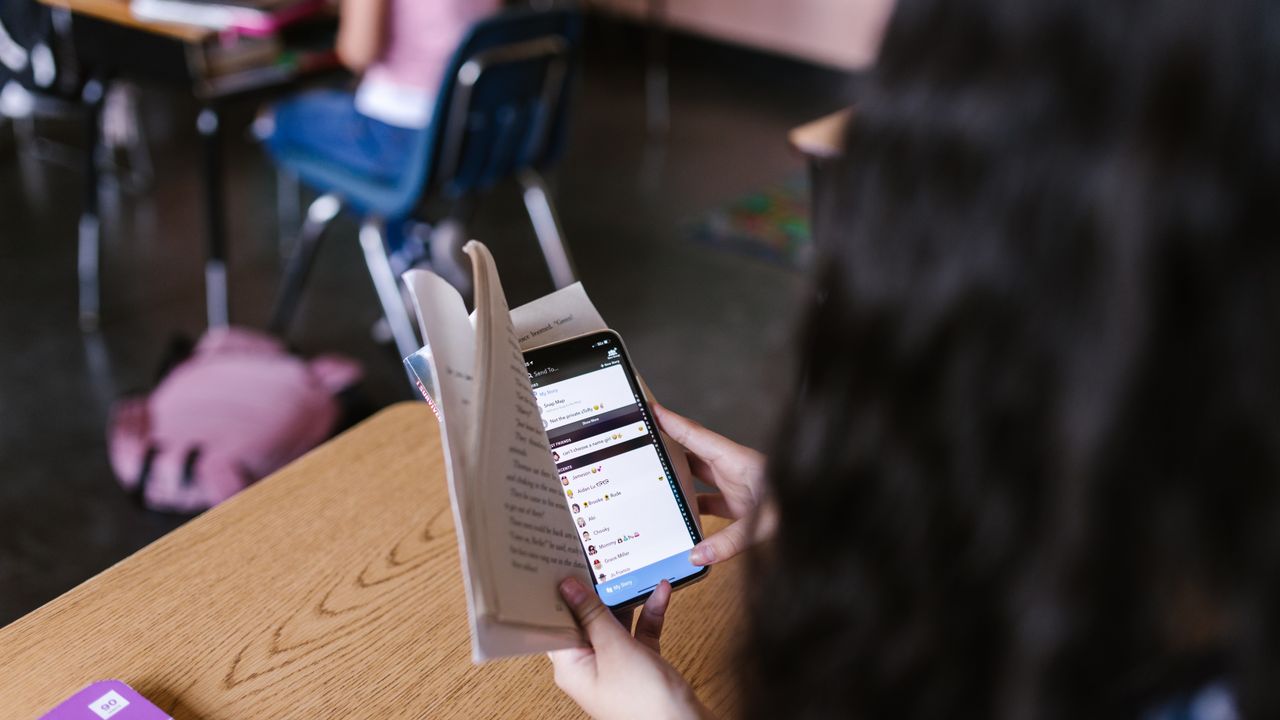
Digital minimalism is intentional technology use. Instead of asking, “How little screen time can I achieve?” ask, “Which technology supports my work, relationships, learning, or recreation—and which usage is mostly automatic?”
The answer will differ by person. Someone who works on a laptop eight hours a day has a different screen-time baseline from someone whose job is mostly offline. The useful target is not a universal number; it is reducing low-value or compulsive use while keeping the digital tools that genuinely help.
Step 1: Measure Before You Cut
Use the built-in screen-time or digital-wellbeing tools on your phone to see where time actually goes. Apple provides Screen Time, and Android devices commonly offer Digital Wellbeing features.
Review:
- Total daily screen time
- Most-used apps
- Number of notifications
- How often you pick up or unlock the phone
- Times of day when usage spikes
Do not treat the number as a grade. Use it to find the easiest change.
Step 2: Turn Off Non-Essential Notifications
Notifications are powerful because they create an external reason to check the device. Keep alerts for communications or events that truly need your attention; silence promotional, social, shopping, game, and “engagement” notifications that can wait.
A simple hierarchy:
- Immediate: calls from family, security alerts, work alerts you are responsible for.
- Batch later: email, group messages, social replies, news.
- Off: promotions, streak reminders, suggested content, shopping alerts.

Step 3: Remove High-Distraction Apps From the Home Screen
You do not always need to delete an app. Move it off the first screen, remove its widget, log out, or use the web version. Adding a small amount of friction can interrupt automatic opening.
Keep the first screen for tools you use intentionally: maps, calendar, camera, notes, transit, authentication, or essential communication.
Step 4: Create Phone-Free Anchors
Choose parts of the day when the phone has a specific parking place rather than following you everywhere.
Examples:
- First 20–30 minutes after waking
- Meals
- Focused work sessions
- Exercise
- Family conversations
- The final part of the evening
Start with one anchor. A small rule that becomes automatic is more useful than a dramatic digital detox that lasts one weekend.
Step 5: Replace the Habit, Not Just the App
If scrolling fills every small gap in the day, deleting an app creates empty time but does not tell you what to do instead. Prepare simple replacements:
- Read a few pages of a book.
- Walk for five minutes.
- Write a short task list.
- Listen to music without opening a feed.
- Do one small household task.
- Call or message one person intentionally.

Step 6: Batch Email and Messages
Constant inbox checking can fragment work even if total screen time is not high. When your responsibilities allow it, choose specific windows for non-urgent messages instead of keeping every inbox open all day.
If your job requires rapid response, use priority contacts or channel-specific alerts so urgent messages can still reach you while low-priority notifications remain quiet.
Step 7: Make Focus Sessions Visible
Use a simple timer or calendar block for one task. During the block:
- Close unrelated tabs.
- Put the phone out of immediate reach.
- Keep only the documents needed for the task open.
- Write distracting thoughts on paper instead of switching tasks.
- Take a short break when the block ends.
If the physical workspace contributes to distraction, see our distraction-free workspace guide.
Step 8: Clean Up Digital Clutter
Digital clutter can make devices harder to use even when it does not directly increase screen time.
- Delete unused apps.
- Organize important files into a small folder structure.
- Remove duplicate downloads.
- Unsubscribe from newsletters you never read.
- Archive old projects.
- Back up irreplaceable photos and documents.
Do not spend days perfecting a folder system. The purpose is faster retrieval, not digital interior decorating.
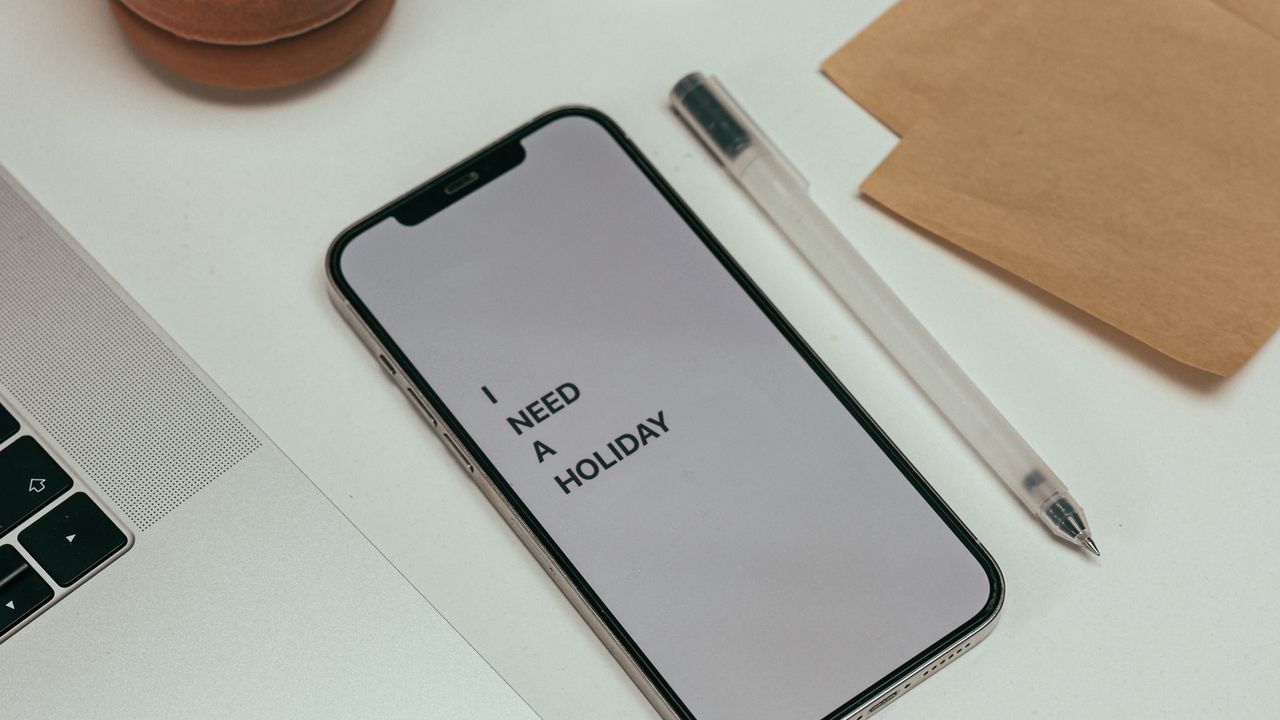
Step 9: Set Boundaries Around Social Media
Choose how you want to use social platforms. You might keep messaging but remove algorithmic feeds, use a browser instead of an app, set a daily time limit, or follow only accounts that provide real value.
Be careful with “productive” content that keeps you watching productivity advice instead of doing the work itself.
Step 10: Protect Sleep Routines
For many people, the most disruptive screen habit is not total daily use but late-night scrolling that extends bedtime. A simple evening boundary can help: charge the phone outside arm’s reach, set a “wind-down” reminder, or switch to an offline activity at a chosen time.
If you use your phone as an alarm, place it far enough away that checking it in bed is less automatic.
Digital Minimalism at Work
You may not control all work tools, but you can often reduce switching.
| Problem | Simple response |
|---|---|
| Too many tabs | Keep a small active set and bookmark/reference the rest. |
| Constant chat | Use status/focus modes when responsibilities allow. |
| Email interruptions | Batch non-urgent review. |
| Multiple task apps | Choose one primary task system. |
| Phone beside keyboard | Move it outside immediate reach during focus work. |
Digital Minimalism for Families
Family rules work better when adults follow them too. Instead of treating devices as automatically harmful, set rules around specific contexts—meals, bedtime, homework, shared activities, and privacy.
Parents should also consider age-appropriate safety settings, account privacy, and whether children understand how to handle unwanted contact or content.
Use Different Rules for Work Screens and Leisure Screens
Total screen time can be misleading when a large part of the day is required for work, school, accessibility, navigation, or communication. Instead of trying to reduce every minute, separate required use from discretionary use. A person who spends seven hours on a work computer may get more benefit from cutting one hour of late-night scrolling than from obsessing over the workday total.
Create different boundaries for different purposes. Work tools can stay available during planned work blocks. Entertainment apps can have a defined window. News can be checked at one or two chosen times instead of continuously. Messaging can be separated into urgent contacts and conversations that can wait.
Create a Low-Distraction Default for New Apps
Every new app should not automatically receive permission to send alerts, use the home screen, or run in the background. When installing something new, decide whether it needs notifications and whether it deserves a visible place on your device. This prevents digital clutter from rebuilding itself after a cleanup.
Monthly five-minute check
- Remove apps you stopped using.
- Review notification permissions.
- Check subscriptions tied to unused apps.
- Clear downloads and duplicate files.
- Move high-distraction tools away from the first screen.
A short recurring review is easier to maintain than a large digital detox every few months.
A Seven-Day Digital Reset
- Day 1: Review screen-time data.
- Day 2: Disable non-essential notifications.
- Day 3: Clean the home screen and remove unused apps.
- Day 4: Create one phone-free daily anchor.
- Day 5: Unsubscribe from low-value email and clean downloads.
- Day 6: Try two focused work blocks with the phone away.
- Day 7: Review what improved and keep only the rules that were useful.
Common Mistakes
- Setting an extreme screen-time target with no replacement routine
- Deleting necessary apps and reinstalling them a day later
- Using five “focus apps” to solve an app-overload problem
- Keeping every notification because each one might matter
- Comparing your screen time with someone whose work is completely different
- Replacing social scrolling with endless news scrolling
- Making digital minimalism a perfection contest
Frequently Asked Questions
What is a healthy amount of screen time for an adult?
There is no single number that fits every adult, especially because work and accessibility needs vary. Focus on whether screen use interferes with sleep, work, relationships, exercise, or other priorities.
Do I need to delete social media?
No. You can reduce notifications, move apps off the home screen, use time limits, or access selected functions through a browser.
How do I stop checking my phone automatically?
Create friction: keep it farther away, turn off unnecessary alerts, remove distracting apps from the first screen, and prepare an offline replacement activity.
Does grayscale help?
Some people find it reduces visual appeal, but it is optional. Notification control and app placement often create a larger practical difference.
Can digital minimalism improve productivity?
It can reduce interruptions and task switching when the changes target actual distractions. It is not a substitute for realistic workload, rest, or clear priorities.
Conclusion
Digital minimalism is most effective when it changes the environment around your attention. Measure current use, remove unnecessary notifications, build phone-free anchors, batch low-priority communication, and make focused work easier to start.
Keep the technology that earns its place in your life. The goal is not to become anti-technology; it is to make your devices tools you choose to use rather than habits that choose for you.